
Tuesday morning. A leave request has waited since Sunday. The manager saw a notification, but it opened the dashboard, not the request. So it waited.
Same morning, a booking request reaches three people at the front desk. Two of them call the patient. The patient now has two different times.
By Thursday, the manager mutes everything. Most of it was noise anyway.
That is not a notification problem. It is a "who does what" problem. And it costs time, money and patience.
This release fixes it. The dated changelog is on What’s new. The evergreen product page is Notifications.
Every notification opens the right thing
Tap a notification, and you land on the exact request, session or record. Not the dashboard. Not a list you have to search.
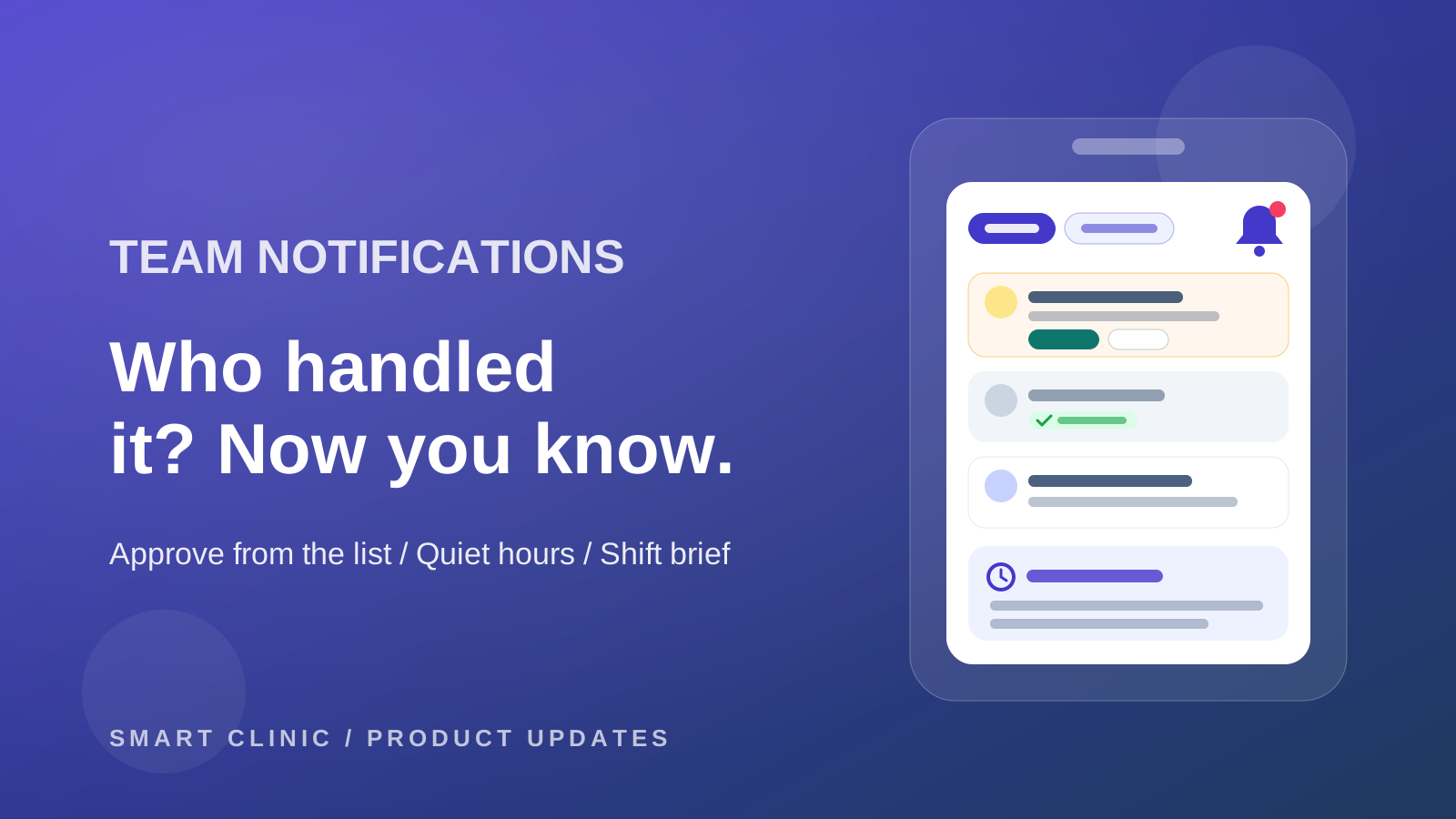
From the bell, press View all notifications. The Notifications page has five tabs: All, Unread, Needs action, Snoozed, and Archived. Start your day with Needs action. That is the list of what waits for you.
Approve from the list
Many requests don't need a new page. Approve or accept them right from the list: leave, advances, overtime, permissions, deductions, shifts, purchase orders, payment proofs, and session requests.
And when a request reaches several people, the first one who handles it closes it for everyone. The others see Handled by, with the name and the time. Nobody calls the patient twice.
Hear what you need, when you need it
Not everyone needs the same alerts. Under your profile, the Notifications tab lets each person pick, per category: Phone, Browser, or WhatsApp. In-app is always on.
Then set when they reach you:
- Quiet hours: nothing on your phone or WhatsApp in the window you pick.
- Digest: hourly or daily, for info and warnings. Anything that needs your action never waits.
- Hold notifications while I’m in a session: the doctor finishes the visit first.
A noisy type? Pick Mute this type from the row menu. Critical alerts still reach you, whatever you choose.
The owner decides who hears what
In settings, Notification rules lists every type. For each one, pick who gets it, by role, by permission or by name. Press Who would get it? to see the names before you save.
Then decide what happens when nobody acts. The item goes to the branch managers after the time you set, then to the owner. No leave request waits from Sunday to Tuesday again.
What’s working shows which alerts the team opens, and which ones they ignore or mute. Turn off the noise for the whole clinic in one tap.
New things the team hears about
The front desk hears when a patient waits too long, or leaves without paying. The cashier's shift closing and the end-of-day summary reach the people who check the money. Purchase orders, supply requisitions and stock counts reach whoever approves them. And patient requests, payment proofs, store returns, refunds and large discounts reach the right person.
A shift that starts with a plan
On the home page, each person gets Your shift brief: a few lines on what waits for them today. It is ready before the shift starts. AI writes it from counts only, with no patient data.
Open the notifications page tomorrow morning. Start with Needs action. Then set your quiet hours, and go home on time.


